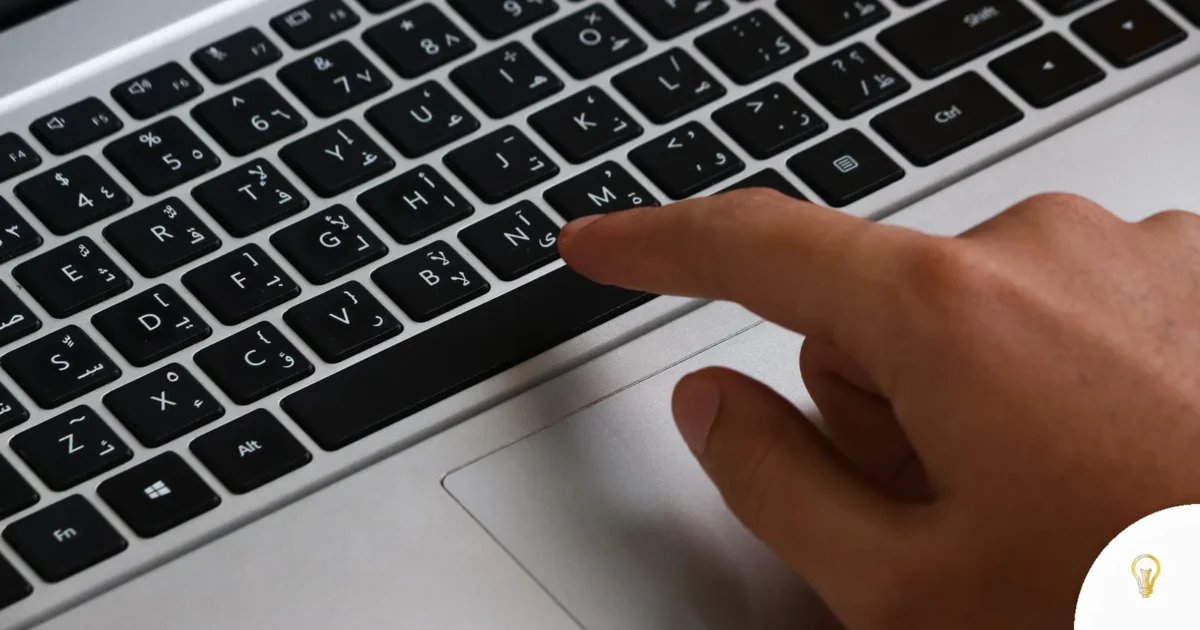
Apple announced a MacBook Pro with a touch screen and its PROLED XDR display on October 28, 2026, and the laptop goes on sale on November 6. You can now scroll, pinch, drag and draw straight on the panel, on a machine that weighs 3 pounds in the 14-inch size and offers up to 24 hours of battery life.
In Short
- Touch finally works on the display: you can drag windows, pinch to zoom and draw in creative apps, and Apple says macOS translates your touches into clicks so existing apps respond without waiting for an update.
- The PROLED XDR display runs at up to 2,000 nits of peak brightness with a 10,000,000:1 contrast ratio and an adaptive refresh rate up to 120Hz, so outdoor work and HDR video look far better.
- The range starts at $2,899 for the 14-inch M5 Pro, preorders opened on October 28 and laptops reach Apple stores and resellers on November 6.
What MacBook Pro Changes for You
On October 28, 2026, Apple introduced a 14-inch and 16-inch MacBook Pro with a touch screen and a PROLED XDR display built on tandem OLED technology. The screen uses two self-illuminating pixel layers, supports P3 and Adobe RGB, and offers up to 2,000 nits of peak brightness for both HDR and SDR content. Apple redesigned the hinge so the screen stays steady while you tap it, and it added Dynamic Island to the Mac for Spotlight, Live Activities and Siri AI. The rest of the hardware moves too: a thinner and lighter body, Thunderbolt 5, Wi-Fi 7, Bluetooth 6, a 12MP Center Stage camera and a six-speaker system Apple says delivers 50% deeper bass.
Preorders opened on October 28 and the laptops launch on November 6 through Apple’s online store, Apple retail locations and authorized resellers. Prices run from $2,899 for the 14-inch M5 Pro to $4,799 for the 16-inch M5 Max, and a maxed out 16-inch configuration costs $14,549. Students and educators qualify for education pricing that starts at $2,749 for the 14-inch M5 Pro.
Hint 1: Reach Out and Touch the Screen
Multi-Touch turns the display into a second input device. You can scroll a long page with your finger, pinch to zoom a photo, drag a file into a folder and move a window by touching it. Apple says macOS automatically translates touches into clicks, so apps that were built before the feature can still respond to you. The redesigned hinge keeps the screen from tipping backward, which is what usually makes touch laptops feel wrong.
Say you are reviewing a long contract in a browser tab while a document sits beside it. Instead of hunting for a trackpad gesture, you can flick the page up with a finger and drag a paragraph into the other window.
- Open a long document or web page and scroll it with one finger to get used to the feel of the panel.
- Try pinch to zoom on a photo or a map, then drag a window by its title bar to see how the hinge holds up.
- Keep the trackpad as your main tool for precision work and use touch for scrolling and dragging, so you do not have to retrain your hands.
Hint 2: Draw and Model Directly on Screen
The touch screen is not only for scrolling. You can draw on the display, rotate and move 3D models, and play virtual instruments inside music production software. That puts sketching and rough editing on the same device you already carry, rather than adding a tablet to your bag. For anyone who pays for a separate drawing tablet, this is the part that changes how the laptop pays for itself.
Picture a designer sketching a logo concept before a client call and then refining the same file on the same machine. The sketch, the 3D mockup and the presentation all happen on one screen.
- Open your drawing or 3D app and test a simple page with your finger before you try detailed line work.
- Check whether your app already accepts touch input, since Apple says touchscreen functionality can be added by developers on top of the automatic click translation.
- Rest the laptop on a stable desk for drawing sessions, because the six-speaker chassis and thin body feel best on a flat surface.
Hint 3: Pick the Right Display Before You Pay
Both sizes use a PROLED XDR display with tandem OLED technology, up to 2,000 nits of peak brightness, a 10,000,000:1 contrast ratio and an adaptive refresh rate up to 120Hz. It supports P3 and Adobe RGB, so photos and video look the way you expect when you send them out. For colour work, that means fewer surprises between what you see and what the client sees. The optional nano-texture finish adds $150 and cuts reflections.
If you edit photos at a window table in a cafe, glare is what usually ruins a grading session. The nano-texture finish is the option aimed at exactly that spot.
- Decide your size first, then pick M5 Pro or M5 Max in the Apple configurator.
- Add the nano-texture glass during the order if you often work near windows, because it is a $150 choice made at purchase.
- Look at the display in a bright store before launch day if you can, so the brightness and finish are what you expected.
Buy the Storage You Need Once
Storage is where this laptop’s price runs away: 4TB adds $1,000, 8TB adds $3,000 and the 16TB option adds $7,000. Work out your real archive size first and keep big media on an external drive, because memory and storage upgrades are locked in at purchase.
Hint 4: Save With Education Pricing or Leasing
There are two cheaper ways in than paying the full price on day one. Eligible students and educators can buy the 14-inch M5 Pro from $2,749 instead of $2,899. In the US, Apple also introduced an Apple Upgrade leasing program that lets eligible customers lease the touchscreen MacBook Pro from $55.99 per month for 36 months. Up front cost stops being the only route to the machine.
Say you are a student who needs a machine now but would rather not empty a savings account in one go. Education pricing cuts the entry price, and leasing spreads the cost across 36 months in the US.
- Check whether you qualify for education pricing before you configure, since the discount is tied to students and educators.
- If you are in the US, compare the leasing option with buying outright on the Apple online store and pick the one that fits your budget.
- Buy directly from Apple if you want the free online Personal Setup sessions that come with a direct purchase.
Hint 5: Stay Unplugged for a Full Workday
Apple lists up to 24 hours of battery life, and the 14-inch model weighs 3 pounds while the 16-inch weighs 4 pounds. A lighter laptop with that kind of runtime means you can leave the charger at home for a normal day of email, documents and a few video calls. The thinner body also makes a difference if you carry it between rooms, offices or classrooms all day.
Picture a full day of lectures or meetings with no free socket in sight. You can work straight through and charge in the evening instead of planning around a cable.
- Check the battery indicator in the menu bar during your first unplugged day to learn how your own workload uses the charge.
- Keep the charger in your bag for trips, and use the lighter body as the reason to stop carrying a second power brick.
- Test a heavy edit or export session on battery before you rely on all-day claims, since demanding work drains any laptop faster.
Hint 6: Grab Mockups From Apple’s Design Assets
Apple updated its Design Resources portal with Photoshop and PNG assets for the new MacBook Pro, according to 9to5Mac. The downloadable .dmg file contains transparent PNG images of the machine in both colours and sizes, plus PSD files with masked display areas for your own layouts. That means a client mockup or a store listing can show the real hardware without you building one from scratch. The portal also carries design guidelines, Figma and Sketch assets, and SF Symbols.
For example, you might be pitching a note taking app for the new laptop and need a store screenshot that looks current. You can drop your interface into the masked display area and export it the same afternoon.
- Open Apple’s Design Resources portal and download the .dmg file for the new MacBook Pro.
- Pick the colour and size that match your target user, then place your own layout inside the masked display area of the PSD.
- Use the transparent PNGs for slides and the PSD files for screenshots, so your export stays sharp at every size.
Quick Reference: What You Can Do Now
Here is how a few everyday jobs look on the new MacBook Pro, and what each one needs.
| Task | How to do it now | What you need |
|---|---|---|
| Scroll, zoom and drag on the screen | Use Multi-Touch gestures on the display | A touchscreen MacBook Pro model |
| Search, control music and see notifications | Use Dynamic Island at the top of the display | macOS 27 on a touchscreen model |
| Work in bright rooms or outdoors | Order the nano-texture finish to reduce reflections | 150 dollars added at checkout |
| Cut the entry cost | Use education pricing or lease through Apple Upgrade | Eligibility, and the US for leasing at 55.99 dollars per month for 36 months |
What to Watch Out For
The entry price is $2,899, and a fully loaded 16-inch model reaches $14,549, which The Verge reports is $4,400 more than a fully specced version of the previous 16-inch MacBook Pro. Upgrades add up quickly: 128GB of memory costs another $2,000 and nano-texture glass adds $150. The number of external displays you can connect depends on the Mac model and chip, and may also vary with display resolution. Apple has not said how many displays these specific models support.
Check Stock and Config Limits
Preorders opened on October 28, but laptops only arrive on November 6, so do not plan a handover around release day. Confirm your exact configuration and delivery date on Apple’s store before you sell your current machine.
Your Next Steps
- Open the Apple online store and compare the 14-inch and 16-inch M5 Pro and M5 Max prices before you decide.
- If you are a student or educator, check education pricing, which starts at $2,749 for the 14-inch M5 Pro.
- If you touch type and draw often, decide now between 4TB at $1,000 and 8TB at $3,000, and buy the storage you need at checkout.
- Watch for reviews and hands-on impressions of the touch screen and the PROLED XDR display after the November 6 launch.
Related on Gets Hint: Apple MacBook and iMac M6: 6 Hints for Your Upgrade, more tech news.
Sources: Apple; The Verge; 9to5Mac.
FAQ: MacBook Pro touch screen
Frequently Asked Questions
Yes. Apple announced a MacBook Pro with touchscreen support on October 28, 2026, in both 14-inch and 16-inch versions. You can scroll, pinch to zoom, drag and drop content, and move windows with gestures on the display, and Apple says macOS translates touches into clicks so existing apps respond.
Pricing starts at $2,899 for the 14-inch model with the M5 Pro and $3,399 for the 16-inch, while M5 Max versions start at $4,499 and $4,799. A fully configured 16-inch model reaches $14,549, and eligible students and educators can buy the 14-inch M5 Pro from $2,749.
It is Apple’s new display on the touchscreen MacBook Pro, built with tandem OLED technology and two self-illuminating pixel layers. Apple lists up to 2,000 nits of peak brightness for HDR and SDR content, a 10,000,000:1 contrast ratio and an adaptive refresh rate up to 120Hz.
Preorders opened on October 28, 2026, and the laptops launch on November 6. They will be sold through Apple’s online store, Apple retail locations and authorized resellers.
The touchscreen MacBook Pro is sold with the M5 Pro and M5 Max chips, with prices from $2,899 up to $4,799 before upgrades. The M5 Max comes with an 18-core CPU and 40-core GPU and is the chip used in the fully loaded configurations that cost $14,249 for 14 inches and $14,549 for 16 inches.