
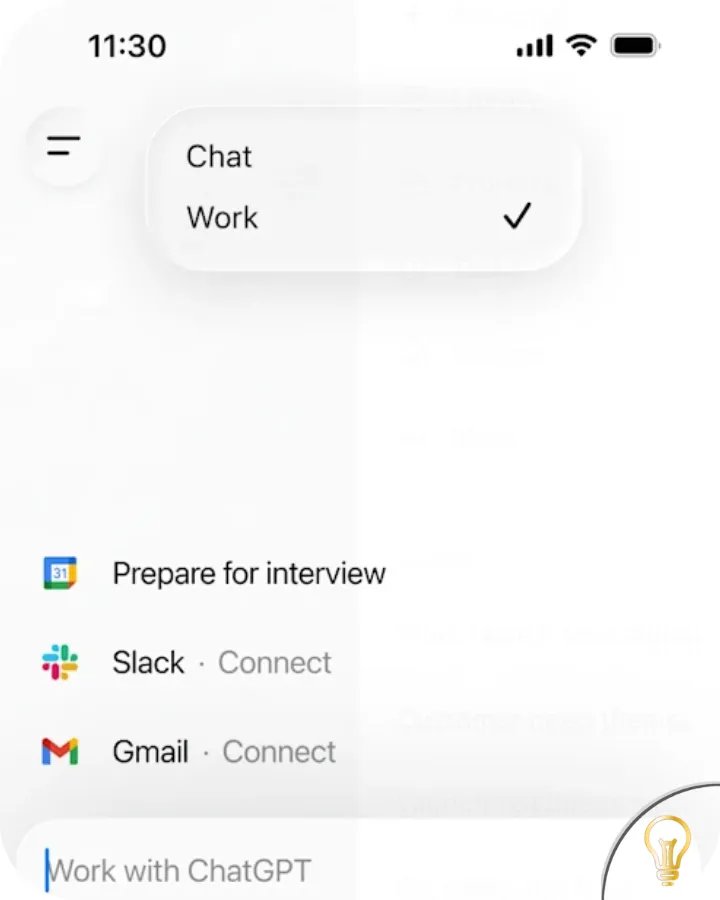
OpenAI is merging the Chat and Work tabs in the ChatGPT desktop app, so your everyday questions and your longer jobs sit in the same window. You can start with an idea in a normal chat and have ChatGPT carry it through to a finished website, deck or web task without hopping between tabs.
In Short
- One window instead of two: you can bring your files and plugins into Chat and Work in ChatGPT and ask for a website, a presentation or a job done on the web while you review the work.
- Fewer dead ends: Codex stays a separate experience in the desktop app, so your coding work keeps its own space while the rest of your work finishes where the idea started.
- The test starts with a small group of select users, according to OpenAI, and ChatGPT Classic retires on January 30, 2027. No separate price for it has been announced.
What Chat and Work Changes for You
OpenAI said it will begin testing a combined Chat and Work experience in the coming weeks, according to an email sent to users that TechCrunch reported. In that one interface you get ChatGPT’s conversational side and the more advanced work capabilities together. OpenAI’s message says this lets you move from exploring an idea to having ChatGPT carry it through, all in one place. Codex stays separate inside the desktop app.
Initially the combined Chat and Work experience is available to select users for feedback before it is rolled out widely, according to OpenAI. It lives in the ChatGPT desktop app, and the company has not said which plans or regions are included in the first test. Nothing has been said yet about a separate price for the combined experience.
Hint 1: Carry One Idea From Question to Finished Work
The point of combining Chat and Work is that the exploration and the execution sit together. You explore an idea in conversation, then ask ChatGPT to carry it through in the same place, which OpenAI says is exactly what the change is for. You can bring in your files and plugins and keep reviewing and guiding the work as it happens. That makes a long idea easier to finish, because the thinking and the doing sit in one interface.
Say you are planning a small launch and start by asking how to explain the product to a non-technical audience. Once the wording feels right, you can stay in that window and bring in your files and plugins, then ask ChatGPT to take the next step from there.
- Open the ChatGPT desktop app and look for the combined Chat and Work test if your account is in the select group.
- Start a normal conversation with one small, concrete goal, and write down what a finished result would look like.
- When the chat is clear, ask ChatGPT to move that work forward in the same window rather than opening a new chat from scratch.
Hint 2: Build a Website or Deck Without Leaving the Chat
OpenAI says you can bring in your files and plugins and ask ChatGPT to build a website, create a presentation, or do things for you on the web, while reviewing and guiding its work. That means the output is not just text you copy somewhere else. You can steer the result as it appears, which makes it easier to catch a wrong headline or a missing section early. For anyone who dreads the blank-page stage of a deck or a landing page, the first draft now takes a conversation.
For example, a two-person consultancy needs a simple site for a new service and has the copy in a folder of notes. In the combined experience, those files can go in first, and the site can be drafted while you check each section and adjust the wording.
- Gather the files you already have, such as notes, a logo brief or an outline, before you open the app.
- Describe the audience and the one action you want a reader to take, then ask for the website or presentation in those terms.
- Review and guide the work as it is built instead of waiting for a final version, because correcting one section early is quicker than fixing everything at the end.
Hint 3: Stop Hunting for the Tab Where You Were Working
TechCrunch noted that the desktop app had become confusing enough that it was easy to forget where you were working and where your project actually lived. Merging the Chat and Work tabs removes that question, because there is only one place for your work in the ChatGPT part of the app. That is a small relief with a real payoff: less time hunting, fewer half-finished jobs stranded in the wrong tab. If you have ever lost a thread you were proud of, this change speaks to you.
Picture yourself on a Friday afternoon with a proposal half drafted and no memory of whether it lives in Chat or Work. With the two merged into one interface, there is only one place in the ChatGPT section for that proposal to be.
- Check which tabs your desktop app shows when the combined experience reaches your account.
- Keep Codex work in its own habit, since OpenAI says Codex remains a separate experience in the desktop app.
- Give each project a clear title in your first message, so you can find it again quickly while the test is rolling out.
Keep Your Chat History Close
OpenAI’s retirement notice for ChatGPT Classic says your full chat history comes with you, so you can pick up where you left off, which means an old conversation is not a reason to stay on the old app. Move the work you still care about into the new app early, while you have time to check that everything opened as expected.
Hint 4: Keep Your History When You Switch Apps
If you are still opening ChatGPT Classic, the banner in the app now says it retires on January 30, 2027, and that your full chat history comes with you to the new app. That turns a scary move into a simple one: you keep the conversations you have built up and continue from where you stopped. You also get the features that only the new app has, which is the practical reason the old one became less reliable over time, according to 9to5Mac. Planning the switch now means you do it on your schedule, not on retirement day.
If you have two years of client research saved in old conversations, you can install the new app, sign in with the same account and confirm those threads are there and readable. Once they are, close the old app for good.
- Open ChatGPT Classic and click the banner, which leads to the ChatGPT downloads page for the latest desktop app.
- Install the new app and sign in with the same account, then open two or three of your most important old conversations to check they carried over.
- Do the switch well before January 30, 2027, so you are not moving your work on the day the app retires.
Hint 5: Pick the Right Model for the Job You Have
OpenAI says usage will depend on model and task, with more advanced models and complex tasks using more of your allowance. That is a useful map for how you work: save the heavy models and the long, tangled jobs for the moments that deserve them, and handle everyday questions on lighter settings. Because Chat and Work now share one window, you can decide this per task instead of per tab. The payoff is that your allowance stretches to the work that actually needs it.
Say you have a day of emails, notes and one big document to draft. Handle the quick rewrite requests with the lighter option you have available, then bring out the more advanced model for the document that will be read by other people.
- Before you send a long request, ask yourself whether a simple answer would do, and choose your model with that in mind.
- Break a big job into steps you can check, so you are not spending a heavy model on work you would throw away anyway.
- Keep the strongest model for the one task that needs judgement, since complex tasks use more of your allowance than simple ones.
Hint 6: Watch Your Usage Pool Instead of Panicking
As part of the transition, OpenAI plans a shared usage allowance for ChatGPT and Codex, replacing their separate limits, and TechCrunch reported that both will draw tokens from the same allowance pool. OpenAI says most users will not need to wait for their usage to reset more often than they do, and that unlimited Instant is included in your plan and will not draw from your usage. Knowing that means you can plan a heavy afternoon without assuming you have two budgets, one for each section. It also means your regular everyday chatting is not what eats the pool.
For example, you might spend a morning on a long coding job in Codex and an afternoon asking ChatGPT to turn the result into a summary for your team. Under one shared pool, both count toward the same allowance, so it is worth spacing the heaviest work rather than stacking it.
- Find where your app shows your usage, and check it before you start a long task so you know where you stand.
- Do your heaviest work earlier in your own working rhythm, so a reset is closer if you run low.
- Keep everyday questions on Instant, which OpenAI says is included in your plan and will not draw from your usage.
Quick Reference: What You Can Do Now
Here is what a few common jobs look like with Chat and Work in ChatGPT, based on what OpenAI has described.
| Task | How to do it now | What you need |
|---|---|---|
| Start an idea and finish it in one window | Explore it in chat, then ask ChatGPT to carry it through in the same place | The ChatGPT desktop app |
| Build a website or a presentation | Bring in your files and plugins and ask ChatGPT to build it while you review | Not stated |
| Keep coding work separate | Use Codex, which remains a separate experience in the desktop app | The ChatGPT desktop app |
| Keep the conversations you already have | Install the new app, where your full chat history comes with you | The ChatGPT desktop app |
What to Watch Out For
The combined Chat and Work experience starts with a small group of select users, and nobody has said who is included, which plans are covered or when the wider rollout happens. Usage is not unlimited across the board: OpenAI says usage will depend on model and task, and TechCrunch reported that some people might need to wait for resets more frequently once ChatGPT and Codex share one allowance pool. ChatGPT Classic retires on January 30, 2027, so anyone still relying on it has a dated deadline. No price for the combined experience has been announced.
Do Not Count on Day One
Check whether your account has the combined experience before you plan work around it, because it goes to select users first and no timeline for everyone else has been published. If you depend on ChatGPT Classic, note January 30, 2027, as the last day it is available.
Your Next Steps
- Open your desktop app and see whether the combined Chat and Work experience has appeared for your account.
- If you still use ChatGPT Classic, click the banner and install the latest desktop app, then confirm your chat history is there.
- Plan your heaviest tasks around one shared usage allowance for ChatGPT and Codex, and keep everyday questions on Instant.
- Watch for OpenAI to open the combined experience to more users and to say how the shared allowance works in practice.
Related on Gets Hint: Claude Duet: 6 Hints to Put Anthropic’s Agent to Work, our Free AI Directory.
Sources: 9to5Mac; TechCrunch.
FAQ: Chat and Work in ChatGPT
Frequently Asked Questions
Chat is where you talk an idea through, while Work holds the more advanced capabilities that carry a job to a finished result. OpenAI is merging the two tabs so you can explore an idea and have ChatGPT carry it through in one place. Codex will remain a separate experience in the desktop app, according to OpenAI.
OpenAI said the experience will first be available to select users for feedback before it is rolled out widely. Keep your ChatGPT desktop app updated, and check whether the combined experience has appeared in your account. A timeline for a broader rollout has not been published.
No, according to OpenAI’s notice in the app: your full chat history comes with you, so you can pick up where you left off. ChatGPT Classic retires on January 30, 2027, and the banner in the app leads to the ChatGPT downloads page for the latest desktop app.
OpenAI plans a shared usage allowance for ChatGPT and Codex, replacing their separate limits, and TechCrunch reported that both will draw tokens from the same pool. OpenAI says most users will not need to wait for their usage to reset more often than they do, but usage will depend on model and task. Unlimited Instant is included in your plan and will not draw from your usage.
No separate price for the combined Chat and Work experience has been announced. The change comes as part of the ChatGPT desktop app, and the company has not said which plans are included in the first test. Treat any price you see elsewhere as unconfirmed until OpenAI says something.