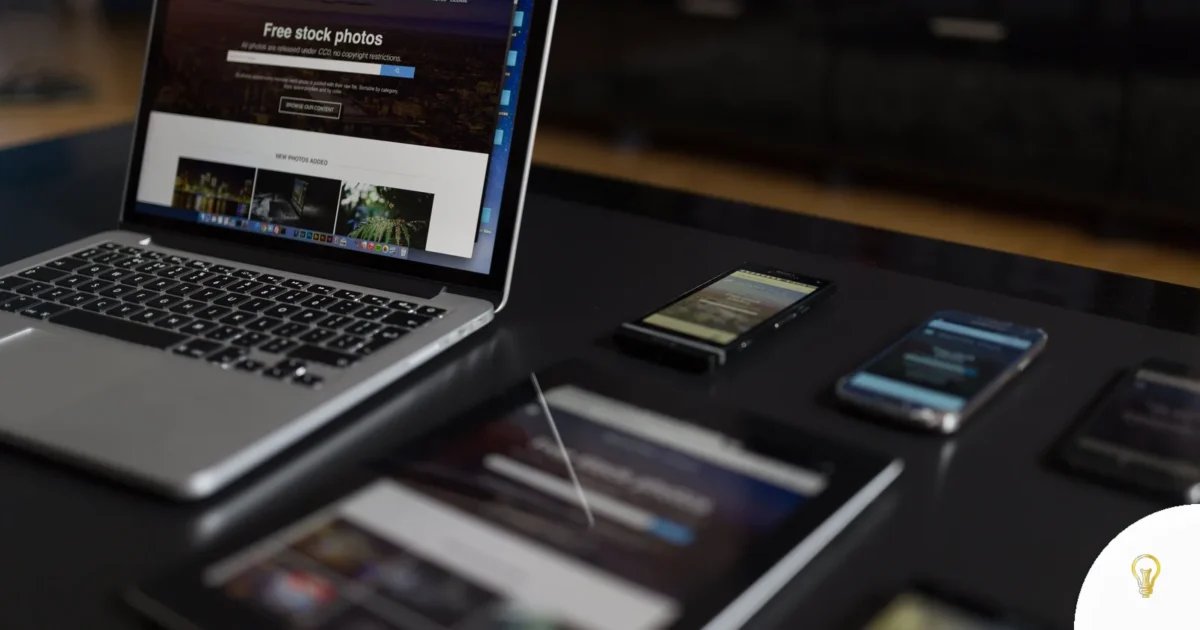
Google has confirmed a Quick Share feature that backs up your photos and videos from Android to Windows automatically, listed in the changelog for Google Play Services version 26.43. That means you can keep a full copy of your camera roll on the laptop you already own, with no cable and no cloud storage subscription. The hints below show how to get your devices ready and what else the November 2026 update changed.
In Short
- Automatic photo and video backups from an Android phone to a Windows PC arrive through Quick Share, according to the Google Play Services 26.43 changelog.
- The feature is built into Google Play Services, so it could reach far more Android phones than Pixel or Galaxy handsets alone.
- No price and no release date have been announced. There is no word on when the feature will be widely available, so treat it as something to prepare for.
What Quick Share Changes for You
In the changelog for Google Play Services version 26.43, Google lists automatic photo and video backups from Android to Windows using Quick Share. Quick Share for Windows already moves files wirelessly between an Android phone and a PC, and this would make part of that job automatic. How the setup will work is still unexplained, and a feature in the changelog is not the same as one that is widely available, as 9to5Google points out. The November 2026 Google System Release Notes also mention Android Family Hub, Password Manager import controls and system management updates.
Because the feature arrives through Google Play Services, it could eventually reach a much wider range of Android devices than the Pixel or Samsung handsets that usually get new tricks first. A release date and a price are both still missing, and 9to5Google notes that some capabilities take months to fully launch. Keep Quick Share on Windows and Google Play Services on your phone updated so you are ready when it does.
Hint 1: Keep a Second Copy of Your Camera Roll
The headline change is automatic photo and video backup from an Android phone to a Windows PC through Quick Share. Once that is set up, your pictures would move to the PC without you plugging in a cable or opening a backup app. The laptop you already own becomes the place those files land, alongside whatever else is on it. It is a quiet safety net rather than a feature you will notice every day, which is exactly what a backup should be.
For example, you spend a weekend at a family wedding, take hundreds of photos and never get around to clearing space on the phone. With this running, those pictures would already be sitting on your laptop while you sleep.
- Install the Quick Share app on your Windows PC and sign in with the same Google account you use on your phone.
- Check that Google Play Services on your phone is updated, since the feature was announced through Google Play Services version 26.43.
- Keep your phone on Wi-Fi while you test it, because moving photos and videos over a mobile connection can eat into your data allowance.
Hint 2: Skip the Subscription and the Cable
Quick Share backup would move files straight between your phone and your PC, so you would not need to pay for extra cloud storage to hold a full copy of your photos. You also would not be hunting for a working USB cable or waiting for a manual drag and drop every time your phone fills up. The laptop you already own becomes the storage, which is money you keep in your pocket. For anyone paying monthly for space they use only for old pictures, that is worth planning around.
Say you have a phone with a full camera roll and a free cloud account that is always warning you about space. A Windows laptop at home can hold that archive instead, and you can spend the money on something else.
- Check how much free space your PC has, and pick a folder on a large drive where your photos should live.
- Connect your phone to a charger near the PC when you run your first transfer, so a low battery does not interrupt it.
- Keep a backup of that PC folder on an external drive, since a second copy on the same machine is not a backup plan.
Hint 3: Send Files Both Ways Without a Cable
Quick Share already lets you transfer files wirelessly between an Android phone and a Windows PC, and that works in both directions. You can push a big video off your phone to free up space, or send a document from the PC to the phone before you leave the house. No cable, no emailing files to yourself, no plugging into a port that stopped working. Android Police points out that wireless options are not always as fast as a cable, so keep it for photos, documents and the odd large file rather than a whole library.
Picture this: you are about to leave for a meeting and need the slide deck that is sitting on your laptop. Quick Share sends it to your phone in a moment, and you can open it on the way.
- Open the Quick Share app on Windows and check that your phone shows up as a nearby device.
- Keep both devices on the same Wi-Fi network and within reach of each other while a transfer runs.
- Send one or two files first to confirm the link works before you queue up a large batch.
Update Both Sides Before You Need It
Keep Google Play Services on your phone and the Quick Share app on Windows updated, because the backup feature was announced through these updates and you will likely need both current to use it. Do that now, while you have time, so you are not troubleshooting permissions the night before a trip.
Hint 4: Manage Your Family in One Settings Screen
The same November 2026 update adds Android Family Hub, a dedicated space for family management tools in Android Settings. Instead of hunting through menus when you need to change something for a child’s account, the controls sit together in one place. That saves time on the small jobs that always seem to arrive at the worst moment, like checking a setting before handing a phone to a kid. It is a simple change, but it makes a shared family phone easier to look after.
If you pass an old phone to your child, you can open Android Family Hub and find the family tools in one spot rather than guessing where each control lives.
- Install the November 2026 Google Play Services update, then open Settings on your phone.
- Look for Android Family Hub and take a minute to read through what each tool does before you change anything.
- Bookmark the screen in your mind for the next time a family member needs a change, and write down any password you set there.
Hint 5: Stop Duplicate Passwords in Their Tracks
Google Password Manager now lets you manually choose which credentials to keep when imported passwords and passkeys conflict with ones you already saved. That means a messy import from a browser or an old phone no longer leaves you guessing which entry is the right one. You pick the winner, keep the entry you trust and throw out the duplicate. Since a conflicting login is exactly the kind of thing that locks you out at a bad moment, this is a small feature with a real payoff.
For example, you import logins from a browser and find two entries for the same bank, one with an old password. The new controls let you keep the matching one and drop the other instead of leaving both in place.
- Update Google Play Services, then open Google Password Manager from your Google Account settings.
- Run your next import and read the conflict list carefully rather than accepting everything at once.
- After choosing, test the login on the site once so you know the credential you kept is the one that works.
Hint 6: Get More Out of the Phone You Own
Google says the November 2026 update includes changes to system management services that should improve battery life, connectivity and overall device performance. In plain terms, the phone you already own may last a little longer and hold a signal a little better without you buying anything. These are the updates people skip because they sound boring, and they are usually the ones you feel most. A few minutes spent updating is a cheaper upgrade than any new handset.
Say your phone battery has started dropping fast by late afternoon. Installing the update is the first thing to try before you look at replacement options.
- On a Pixel, open Settings, tap your name at the top for Google services, then open the All services tab, then Privacy & security, then System services.
- Check for updates while your phone is on Wi-Fi and plugged in, so the download does not fight for battery.
- Note your battery use for a few days before and after, so you can tell whether the update made a difference for you.
Quick Reference: What You Can Do Now
Here is what you can do around Quick Share on Windows and what each task needs.
| Task | How to do it now | What you need |
|---|---|---|
| Send photos from an Android phone to a Windows PC | Use Quick Share to transfer files wirelessly between the two devices | Quick Share app on Windows and an Android phone |
| Back up photos and videos automatically to Windows | Listed in the Google Play Services 26.43 changelog as coming through Quick Share | Updated Google Play Services and Quick Share app |
| Keep family management tools in one place | Open Android Family Hub in Android Settings | November 2026 Google Play Services update |
| Decide which duplicate logins to keep after an import | Choose manually in Google Password Manager when passwords or passkeys conflict | Google Password Manager and the November 2026 update |
What to Watch Out For
Android Police notes that a feature appearing in a changelog does not mean it is widely available, and that some capabilities take months to fully launch. How the backup setup will work is still unexplained, with no release date and no price named. Android Police expects the process to involve the Quick Share app on Windows, a phone kept nearby and both devices signed in to the same Google account, but that is the outlet’s read, not a confirmation. Google also says some features may be experimental and available only to certain users.
Do Not Unplug Your Cable Yet
Do not delete photos from your phone or cancel a storage plan until the automatic backup is confirmed to be running on your own devices. Until Google announces a date for the Quick Share backup feature, a cable or a manual transfer is still the reliable option.
Your Next Steps
- Install the Quick Share app on your Windows PC and sign in with the same Google account as your phone.
- Update Google Play Services to version 26.43 or later and keep it updated from now on.
- Free up space on your PC and pick a folder where your photos and videos should land.
- Watch the Google Play Services release notes for the automatic backup to move out of the changelog and into your Settings.
Related on Gets Hint: Windows 11 Speed Test: 6 Hints for a Faster Connection, more tech news.
Sources: support.google.com; 9to5Google.
FAQ: Quick Share on Windows
Frequently Asked Questions
Install the Quick Share app on your Windows PC and sign in with the same Google account you use on your Android phone. With both devices nearby, you can use Quick Share to transfer files wirelessly between the phone and the PC. Keep the app updated, since new features such as automatic backups arrive through it.
Google listed automatic photo and video backups from Android to Windows using Quick Share in the changelog for Google Play Services version 26.43. No date for a wide rollout has been announced, and Android Police notes that a changelog entry does not guarantee it is live for everyone. Keep both apps updated so you are ready when it rolls out.
There is no word yet on how the automatic backup will work or whether it will involve a storage plan. Android Police expects the transfers to go through the Quick Share app on Windows, which would mean your PC holds the files rather than a cloud service. Treat that as unconfirmed until more details appear.
The automatic backup arrives through Google Play Services, and Android Police reports that it could eventually become available across a much wider range of Android devices. That suggests it will not stay limited to Samsung Galaxy or Pixel handsets. No list of supported phones has been published yet.
The same update brought Android Family Hub in Android Settings, manual control over conflicting passwords and passkeys in Google Password Manager, and system management changes that Google says should help battery life, connectivity and performance. Android XR glasses can now connect to your phone, and Google Wallet picked up an in-app message center and Aadhaar digital ID upgrades. Google notes that some features may be experimental and available to certain users.