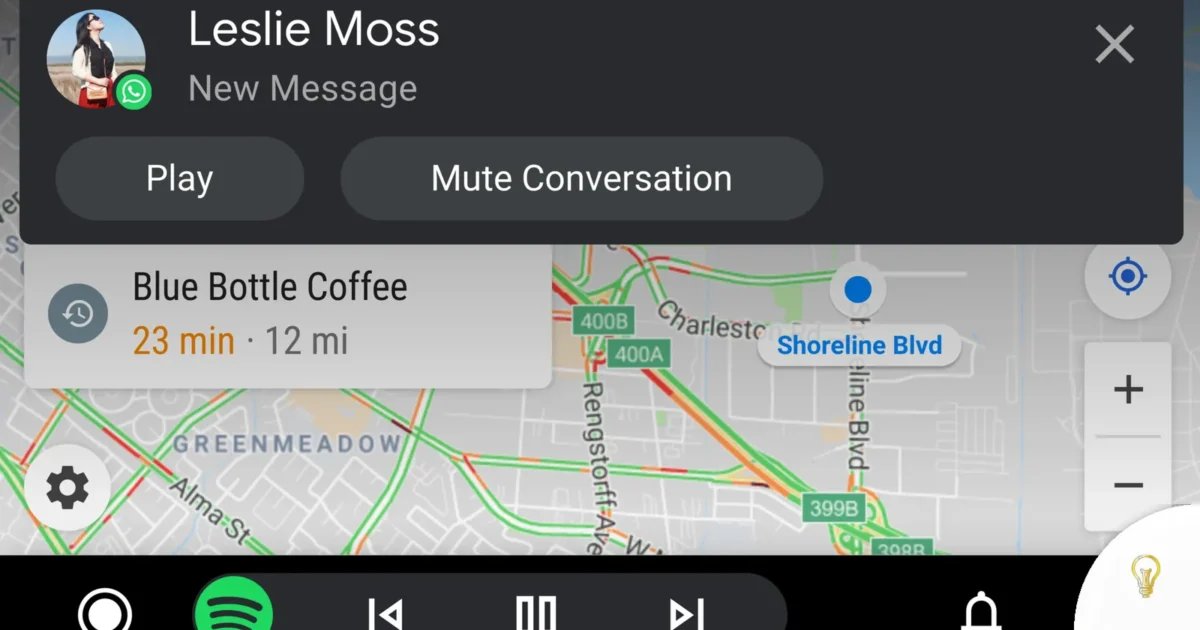
Android Auto is starting to show motorcycle-specific directions in Google Maps, so riders finally get routes built around a bike instead of a car. The change means roads closed to two-wheelers drop out of your route and narrower side streets that can be quicker move in.
In Short
- Motorcycle riders can now get Google Maps routes that skip roads where two-wheelers are not allowed and use narrow side roads that may be faster.
- Once the mode is on, a motorcycle icon appears on the ETA card, so you can see at a glance that the route is built for your bike.
- There is no price and no full launch date from Google, and the support page still lists two-wheeler directions as limited to mobile devices in limited locations.
What Android Auto Changes for You
Riders in India have noticed a new message in Google Maps on Android Auto asking them to restart the app to switch to two-wheeler directions. After that, the motorcycle icon shows up on the ETA card. Android Police reports that the mode makes Maps look for narrow roadways it would not send a car down, and skip troublesome routes such as freeways. Google has not made an official announcement, so treat this as a rollout in progress rather than a finished launch.
Users in India were the first to report seeing it, and Google’s support page says two-wheeler directions are only available in limited locations. There is no price and no launch date from Google yet, and not every rider has the prompt. If you ride with a built-in Android Auto unit on your bike, you may simply have to wait for it to arrive.
Hint 1: Stop Being Sent Down Roads Bikes Cannot Use
The core change is simple: two-wheeler directions keep you away from roads where motorcycles are not allowed. That turns a route you had to mentally filter into one you can follow without second-guessing the screen. For a rider in a city where certain stretches are closed to bikes, this removes the guessing that used to happen mid-ride, when it is hardest to stop and check. You follow the line, not your memory of the rules.
Say you ride a scooter to work through a city with several restricted roads near the centre. With two-wheeler directions on, the route avoids them, so you are not turning around at a barrier with traffic behind you.
- Start a route in Google Maps through Android Auto and watch for the restart prompt about switching to two-wheeler directions.
- Restart the app when asked, then look for the motorcycle icon on the ETA card to confirm the mode is active.
- Compare the new route with a route you know well before you rely on it, so you can see which roads it drops and why.
Hint 2: Take the Narrow Shortcut Your Bike Can Handle
Two-wheeler directions can send you down narrower side roads that may offer faster alternatives, because a bike can squeeze through gaps a car cannot. That is the part riders have wanted for years: the app recognizing that your vehicle’s smaller footprint opens up options. On a busy day, a tight lane you would never attempt in a car can be the difference between moving and sitting still. The route is planned around what your bike can actually do.
Picture a morning commute where the main road is clogged and a narrow lane runs parallel to it. A route that considers the bike’s profile can take that lane, while a car route simply waits in traffic.
- Turn the mode on and enter a destination you already know, then look at the suggested route on the map before you set off.
- Read the street names on the narrow sections once, so you recognize the turns when you are moving and cannot stare at the screen.
- Ride the shortcut once at a quiet hour first, since a lane that looks fine on a map can be blocked in person.
Hint 3: Keep Freeways and Bad Roads Off Your Route
According to Android Police, Google Maps also steers bike routes away from troublesome stretches such as freeways. For a smaller machine, a fast multi-lane road is often the worst part of a trip, so leaving it out is a real gain in comfort and safety. It also means the route you get matches the way you actually ride, rather than assuming you want the quickest road in a car. You spend less time on the kinds of roads that make a two-wheeler feel exposed.
If you ride a small bike that struggles to keep up with fast traffic, a route that avoids the freeway is worth more than a route that saves a few minutes on paper.
- Check the route overview before you start, and see whether it heads for a freeway or stays on smaller roads.
- Look at the alternatives Google Maps offers and pick the one that keeps you off roads where you feel exposed.
- Save the addresses you ride to most often, so setting up a bike-friendly route takes a few taps when you are already wearing gloves.
Restart Before You Set Off
When the restart prompt appears, restart Google Maps before you start riding, not at the first junction, so the motorcycle route is already active. Doing it while parked also lets you check the ETA card for the motorcycle icon and confirm the mode stuck.
Hint 4: Add Bike Routing to a Screen You Already Have
Open Headunit, which can be downloaded from Github, emulates a car display and tricks Android Auto into running on a normal device, which makes it a popular choice for motorbike riders. Android Police reports that the person who first spotted the motorcycle option was running it this way, and that it likely arrived through Google’s testing period. In practice, riders using that setup are the most likely to be able to try the feature right now. If your bike has no built-in screen, this is the path that gets you one.
For example, if you ride an older bike with no Android Auto head unit and an old phone in a drawer, Open Headunit can turn that phone into a display you mount on the bars.
- Download Open Headunit from Github and install the latest build on the phone you want to use as your display.
- Connect the phone to your bike’s mount and start Android Auto through the app, then open Google Maps and check whether the two-wheeler prompt appears.
- Keep the app updated, since Android Police notes that Open Headunit picked the option up in its latest builds.
Hint 5: Check Your ETA Card for the Bike Icon
When the mode is on, a motorcycle icon appears on the ETA card, which gives you a quick visual confirmation that the route is not a car route. That matters when you are about to trust the screen in an unfamiliar city and cannot afford to wonder which mode you are in. It also gives you something concrete to look for when you hear the feature exists but are not sure whether it has reached your device. No icon means no bike routing, and you can plan accordingly.
Say you set a destination in a city you have never ridden in and you want to be sure the route suits your bike before you pull away. A glance at the ETA card tells you which mode Google Maps is using.
- Set a destination in Google Maps on Android Auto and look at the ETA card before you start moving.
- If no motorcycle icon shows, close and reopen Google Maps, then check again.
- Do not assume the mode is on just because the prompt appeared once. Confirm the icon each time you start a long ride.
Hint 6: Know Whether Your Bike Gets It Yet
Android Auto has been working to better accommodate motorcycles for a while, and some motorcycles even have Android Auto support built in, according to 9to5Google. That makes the feature a natural fit for head units that come with the bike. The catch is timing: riders with built-in units may not see the prompt yet, while people testing on other setups may get it sooner. Knowing which group you are in saves you from hunting for a setting that has not reached you.
Picture pulling up on a bike that shipped with Android Auto built in and finding nothing new in Google Maps. That is expected while the rollout is in progress, and it does not mean your bike is missing something you did wrong.
- Update Google Maps and Android Auto to the newest versions available on your phone before you look for the option.
- Open Google Maps on Android Auto and watch for the two-wheeler prompt after each update rather than assuming it is missing for good.
- Keep a car route as your backup for the first few rides, so an unfamiliar bike route never leaves you without a plan B.
Quick Reference: What You Can Do Now
Here is what each part of the motorcycle setup asks of you.
| Task | How to do it now | What you need |
|---|---|---|
| Get motorcycle directions on Android Auto | Restart Google Maps when it asks you to switch to two-wheeler directions | The Google Maps rollout and a supported location |
| Confirm the bike mode is active | Look for the motorcycle icon on the ETA card | The two-wheeler directions mode turned on |
| Run Android Auto on a bike without a head unit | Install Open Headunit from Github and use a phone as the display | A spare Android phone and the app from Github |
| Get bike routing on a motorcycle with Android Auto built in | Watch for the prompt after Google Maps updates | Not stated |
What to Watch Out For
Google’s support page still describes two-wheeler directions as a mobile device feature, with no mention of Android Auto or CarPlay, and says the mode is only available in limited locations. No official word on the Android Auto version has arrived yet, so the evidence rests on riders seeing the prompt in recent weeks. Android Police notes it is not known when Google will roll the option out more widely. Not everyone has received it, and a reviewer using Google Maps on a Pixel 9a with an AR Moto Android Auto unit said bike routes were still not recognized.
Do Not Count on It Yet
Check for the motorcycle icon on the ETA card before you depend on bike routing for a ride where restricted roads or freeways would be a problem. If the icon is missing, plan a route you know works.
Your Next Steps
- Update Google Maps on your phone and check the ETA card on your next Android Auto drive for the motorcycle icon.
- If you ride without a built-in head unit, look up Open Headunit on Github and try it with a spare phone.
- Ride one familiar route with two-wheeler directions on and compare it with the streets you would normally choose.
- Watch for an official word from Google on which countries get the mode and when, since the support page still lists it as limited availability.
Related on Gets Hint: Samsung Gallery Google Photos Sync: 6 Hints to Back Up, Android XR Smart Glasses: 6 Ways to Guard Privacy, Android Time Zones in Canada: Fix the Wrong Clock, more tech news.
FAQ: Android Auto motorcycle routes
Frequently Asked Questions
Open Google Maps on Android Auto and watch for a message asking you to restart the app to switch to two-wheeler directions. After the restart, a motorcycle icon appears on the ETA card when the mode is active. Users in India were the first to report seeing it, and no official rollout announcement has been made.
The change riders have reported in Google Maps on Android Auto is a mode that builds routes for a bike instead of a car, with the motorcycle icon on the ETA card as the sign that it is on. Those routes skip roads where two-wheelers are not allowed and can use narrow side roads that may be quicker. No full list of changes has been published, so treat what you see on your own screen as the reliable guide.
Some motorcycles have Android Auto support built in, and 9to5Google reports that Android Auto has been working to better accommodate motorcycles for a while. However, Android Police notes that riders using built-in Android Auto may not see the option yet, since the person who spotted it was using Open Headunit. If your bike’s unit does not show it, wait for the rollout rather than hunting for a hidden setting.
Open Headunit, which is downloadable from Github, emulates a car display so Android Auto runs on a normal phone, and Android Police calls it a popular choice for motorbike riders. The rider who first shared the motorcycle option was using it that way, so the app’s latest builds are your best chance of trying the mode. Set it up with a spare phone before you rely on it on a ride.
No. Google’s support page says two-wheeler directions are only available in limited locations, and it still lists the feature as being for mobile devices without naming Android Auto. No word on a wider rollout has come from Google, so availability depends on your location and on the update reaching your phone and head unit.