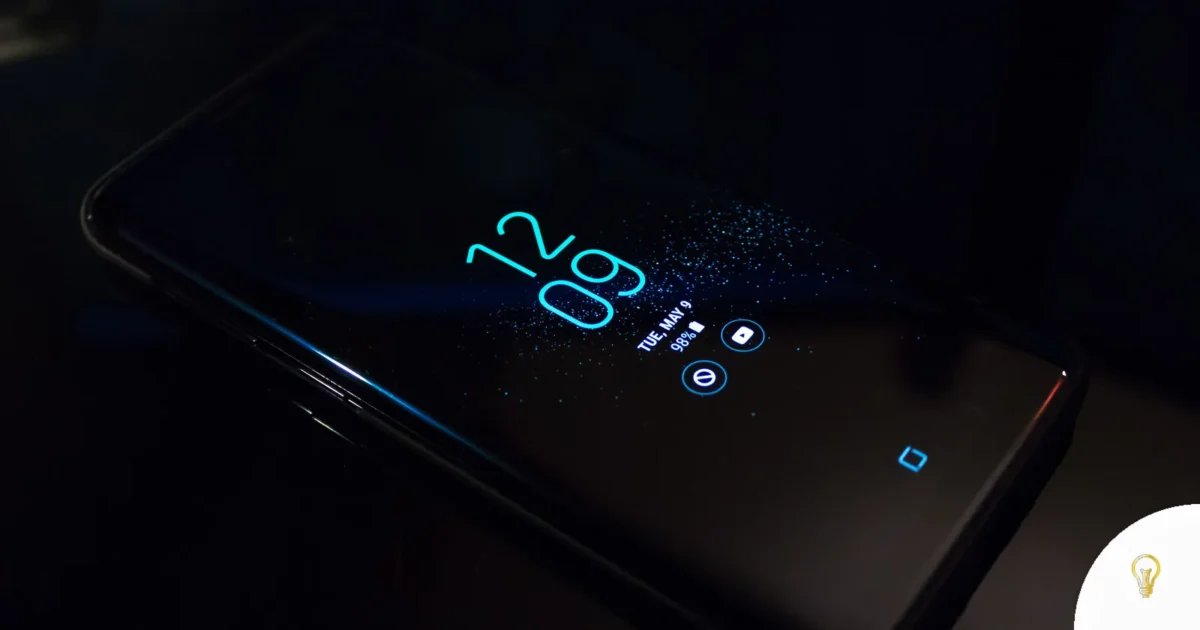
Android phones in Canada started showing the wrong time after new time zone laws took effect on November 1, 2026, and Google has published the exact steps that fix it. You can apply any pending updates, restart, switch on location-based time zone detection, or set the offset by hand. That means your alarms, calendar invites and meeting reminders can line up with the clock everyone else is using, without a trip to a repair shop.
In Short
- Google’s fix is simple: apply any pending updates from your phone’s manufacturer and Google, then restart your Android device.
- If the clock is still wrong, you can enable “Automatic time zone” and “Use location for time zone” under Date and Time in Settings.
- Canadian provinces decided this themselves, and British Columbia and Manitoba are keeping daylight saving time permanently, according to The Verge.
What Android Changes for You
When Daylight Saving Time would normally have ended, parts of Canada did not roll their clocks back an hour. Manitoba announced the change in September, and other parts of the country, including Alberta and British Columbia, also stopped changing their times twice a year, with each province and territory choosing which time to keep. The result was a mismatch between the new local time and what some Android phones still believed, which is why clocks showed the wrong hour on November 1, 2026.
Google’s guidance was shared in an announcement on the Android community help forums, and it applies to people in Canada whose device shows an incorrect time because of the new time zone laws that began November 1. Google has not said which models or Android versions need it, so the steps are worth trying on any Android phone that is off by an hour. There is no charge: the fix is built into the phone’s own Settings.
Hint 1: Get the Right Time Back in Two Minutes
Google’s first suggestion costs you nothing and fixes the most common case. If you are in Canada and your device is showing an incorrect time because of the new time zone laws that began November 1, Google says to apply any pending updates from your phone’s manufacturer and Google, then restart your device. A restart makes the phone read the time zone and clock information again from scratch instead of carrying over the old setting. That is the difference between waking up at the wrong hour and hearing your alarm at the right one.
For example, say your Android phone still showed an hour later than the clock on your kitchen wall on November 1. You open the update screen, install everything waiting there, and hold the power button for a restart. When the phone boots, the lock screen shows the same time as the rest of the house.
- Open Settings, go to the system or software update section, and install every update that is waiting from both your manufacturer and Google.
- Restart the phone with the power button instead of only locking the screen, because a full restart is what Google asks for.
- Check the clock on the lock screen against a second device or a wall clock right after the restart, so you know whether you still need the next hint.
Hint 2: Let Your Phone Read Its Own Time Zone
If the time is still wrong after updating and restarting, Google’s next fix is location-based time zone detection. Your Android phone can work out which zone it is standing in from where it is rather than from a setting chosen earlier, and you switch that on under Date and Time in Settings. The benefit is that your clock follows the place, so an hour that shifted by law no longer has to be corrected by hand. Once it is on, you do not have to remember which province changed its rules.
Say you live in British Columbia, where the clock no longer goes back, and your Android phone insisted on dropping an hour. You turn on both switches, and the phone settles on the time your neighbours are using.
- Open Settings and search for Date and Time, which is the screen Google points you to.
- Enable “Automatic time zone” first, then enable “Use location for time zone”.
- Leave both switches on afterwards. Turning the automatic option off later is what puts you back on a fixed zone.
Hint 3: Pick the Exact Offset by Hand When Nothing Else Works
Google’s third option is the manual one, and it is the one that always ends the argument. You disable “Automatic time zone” in Android’s Settings and choose a time zone with the right offset for your region. The benefit is certainty: you decide what the clock says, and no automatic reading can move it again. That matters most when you are close to a border or when the rules in your area are still settling.
For example, if your phone kept snapping back to the old hour every time it reconnected to the network, choosing the offset yourself pins the clock where you want it. You stop checking the phone before every appointment and trust what it shows.
- Search for Date and Time in Settings again, then turn off “Automatic time zone”.
- Open the time zone list and choose the zone whose offset matches the correct local time for your region.
- Write down or screenshot the zone you picked, so you can set it again if you ever factory reset the phone.
Update and Restart Before You Dig In
Try Google’s update-and-restart step before you touch any time zone setting, because it fixes the phone’s clock reading with the least effort and leaves automatic detection in place. Only move to the manual offset when the clock is still off after a restart, and remember that a manual zone will not follow you when you travel.
Hint 4: Keep Alarms and Meetings on the New Local Hour
Once the clock is right, everything that leans on it falls into line: alarms, calendar invites, reminders and the times shown in messaging apps. The Canadian switch made one hour of difference, and an hour is exactly the amount that turns a 9 a.m. meeting into one you join an hour early or an hour late. Fixing the phone’s own time zone means you do not have to translate in your head every time you look at a schedule. That is the practical payoff for anyone whose Android phone is also their work phone.
Say your team spans Manitoba and a province that still changes its clocks. Your Android phone has the correct time zone set, so the meeting shows at the hour your calendar says, and you join when the reminder arrives instead of working it out yourself.
- Run through your alarm list after the fix and confirm each alarm still shows the hour you expect.
- Open your calendar for the next few days and check that appointments sit at the right hour rather than one hour off.
- Recheck any recurring reminder that crosses a provincial border, such as a weekly call, since those are the ones that drift first.
Hint 5: Recover Delivery Slots and Travel Plans
The hour an Android phone reports also decides what other apps display, from delivery windows to boarding times and ticket dates. When the time zone is wrong, a slot can appear outside the hours the shop actually delivers, or a booking can look like it starts when you will not be there. Setting the phone to the right offset brings those screens back in line with local reality. It is a small setting with a very visible effect on plans you have already paid for.
For example, if you booked a delivery for the evening and the app offered you a window that seemed an hour too late, that was the phone’s clock talking. After the fix, the same order screen shows the window that matches the hours on the shop’s door.
- Open the apps you use for deliveries and travel and refresh the relevant screen after the fix, so the times are drawn again.
- Compare the time on a ticket or order confirmation with your phone’s clock, and rebook if they no longer agree.
- Take a screenshot of any booking you are unsure about, so you have a record of the time you saw if you need to ask for a change.
Hint 6: Keep Your Android Tablet in Step With Your Phone
If one Android device needed these steps after the Canadian change, check any other Android device you own, including an Android tablet. The steps Google lists are a set of settings on the device itself, so walk through them on every screen you rely on. Walking through the same Date and Time settings there means the devices you carry stop disagreeing about what time it is. That keeps reminders and alarms consistent across the screens you look at.
Say your Android phone is correct but the tablet on your kitchen counter still shows the old hour, so a synchronised reminder fires at two different moments. You run the update-and-restart step on the tablet, enable location for time zone, and both screens match again.
- Pick up any other Android device you own and check its clock against the corrected phone.
- Apply pending updates and restart that device, then search for Date and Time and turn on location-based time zone detection if it is still off.
- Do the check on the device you actually rely on for alarms, and treat that one as the reference for the rest.
Before vs After: What Gets Easier
Here is how a few everyday moments change once your Android phone shows the new local time.
| Task | Before | Now |
|---|---|---|
| Waking up on time | The alarm fired an hour off the new local hour | The clock matches the time your province keeps, so the alarm lands where you set it |
| Joining a meeting | You worked out the hour difference in your head | Calendar entries show the hour your colleagues are actually using |
| Knowing the time while travelling | The phone kept the hour it had before | Location-based detection reads the zone from where you are |
| Trusting a second Android device | A tablet or spare phone could disagree with your phone | The same Date and Time steps bring every device into line |
What to Watch Out For
The manual option has a trade-off Google does not hide: once “Automatic time zone” is off, your phone will not adjust on its own when you travel. Daylight saving rules still vary from province to province in Canada, and even within smaller regions, which The Verge notes makes it hard for devices to keep up in a timely manner. Google has not said which phone models or Android versions received a fix, so a device that is no longer getting manufacturer updates may depend on the manual setting. Google also has not said whether any future update will handle the Canadian rules automatically.
Manual Zone Does Not Travel
If you disable “Automatic time zone” and pick an offset by hand, remember to turn the automatic setting back on before you cross into another zone, or your clock will stay on the time you chose at home.
Your Next Steps
- Check your Android phone’s clock against a clock you trust, then apply any pending updates from your manufacturer and Google and restart the device.
- If the time is still wrong, search for Date and Time in Settings and enable “Automatic time zone” and “Use location for time zone”.
- As a last resort, disable “Automatic time zone” and choose the time zone with the right offset for your region.
- Repeat the same steps on any other Android device you own, and turn automatic time zone back on whenever you travel.
Related on Gets Hint: more tech news, how to clear your DNS cache.
Sources: 9to5Google; The Verge.
FAQ: Android Time Zones
Frequently Asked Questions
Google’s first step is to apply any pending updates from your phone’s manufacturer and Google, then restart the device. If the time is still incorrect, search for Date and Time in Settings and enable both “Automatic time zone” and “Use location for time zone”.
Parts of Canada did not roll their clocks back, because provinces such as British Columbia and Manitoba are keeping daylight saving time permanently, according to The Verge. Google shared fixes in its Android community help forums for devices showing an incorrect time as a result of the new time zone laws that began November 1.
Yes. Google suggests disabling “Automatic time zone” in the Date and Time settings and choosing a time zone that matches the correct offset for your region. The catch is that a manual zone will not update by itself when you travel.
Google suggests searching for Date and Time in your Android settings and enabling both “Automatic time zone” and “Use location for time zone”. If that does not settle the clock, you can disable the automatic option and pick a zone with the right offset instead.
No. Every step Google suggested is a setting on the device or a software update from your manufacturer and Google. Google has not announced a price because there is nothing to buy.