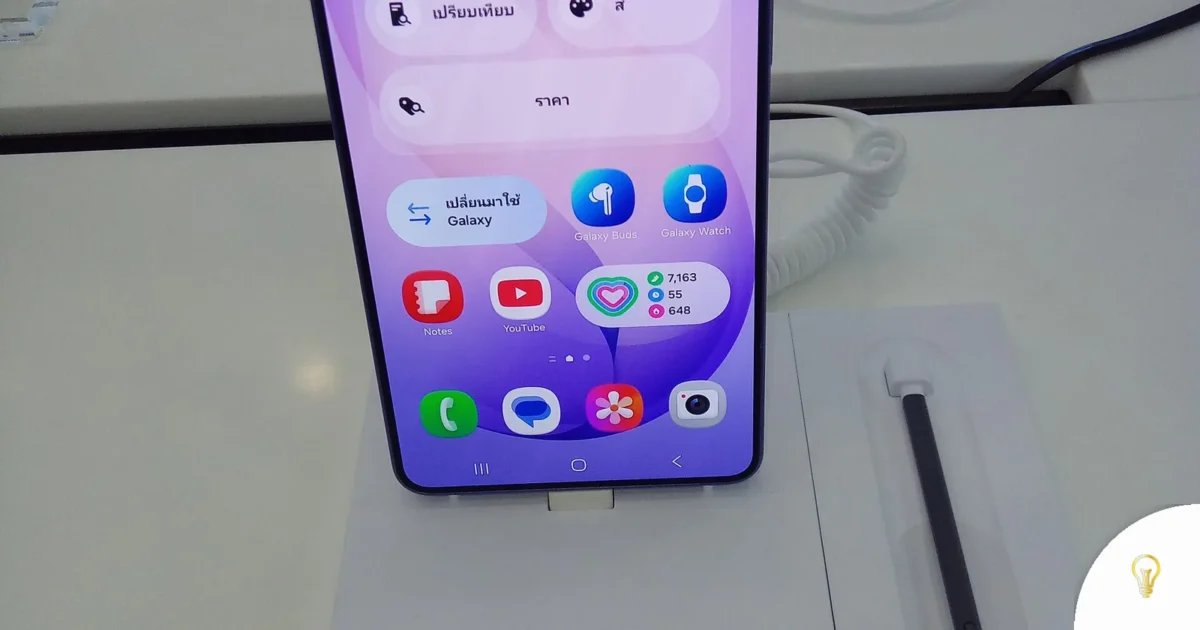
Samsung opened the One UI 9.5 beta for the Galaxy S26 series on November 18, 2026, in the US, UK, Germany, India, Korea and Poland. Enroll and you can lock single apps, shoot with saved camera presets and keep a medication log in Samsung Health months before the stable build lands.
In Short
- App Lock finally hides any single app behind biometric or PIN unlock, so you can hand over a phone for one task without exposing messages or banking.
- The camera adds Pro and Pro video presets plus a zoom bar on the main shooting screen, which means fewer trips through menus while something is happening in front of you.
- The beta is free to join through the Samsung Members app for Galaxy S26 series owners in the six listed countries, and the download is a 3.6GB firmware update.
What Galaxy S26 Changes for You
Samsung began public testing of One UI 9.5 on the Galaxy S26 series on November 18, 2026, less than two months after One UI 9 reached the same phones. The beta is still built on Android 17 and brings UI refinements, a more proactive Bixby assistant and a smarter Now Brief, according to Android Police. Samsung’s newsroom post highlights camera controls, Samsung Health tools, floating shortcuts, hearing aid controls and App Lock. Early users report two separate downloads: the main firmware, then a second 540 MB update after the first restart.
The beta opened in the US, UK, Germany, India, Korea and Poland at the same time, which is wider than Samsung’s usual first wave, and enrollment runs through the Samsung Members app. Samsung has not announced a price for One UI 9.5, and the beta itself costs nothing beyond the app and an eligible phone. A stable release is expected early next year, likely starting on the Galaxy S27 series.
Hint 1: Lock One App Instead of the Whole Phone
App Lock lets you hide an individual app behind added biometric or PIN unlock. Until this beta, readers who wanted that kind of protection had to move apps into Secure Folder, which changes how you launch them. Android Central calls it the best feature in this release, and it is easy to see why: one protected app solves most sharing situations.
Say you hand your Galaxy S26 to a delivery driver to sign for a package, or to a child who wants to see photos. With App Lock on your banking and messaging apps, the rest of the phone stays useful while the sensitive parts ask for a fingerprint.
- Update to the One UI 9.5 beta, then open Settings and look for the security section that holds App Lock.
- Turn it on for the two or three apps you would least want a guest to open, such as banking, email and messaging.
- Register a second fingerprint for the hand you normally hold the phone in, so the unlock prompt does not slow you down every time you check a balance.
Hint 2: Save Camera Presets for Tricky Light
The enhanced Pro and Pro video modes now offer customizable controls and presets for tailored shooting conditions. In plain terms, you can set a look once for a specific situation and bring it back instead of rebuilding your settings every time. The default camera also gains improved controls and a zoom bar that puts key settings on one screen. According to Samsung, the idea is to make adjustments without navigating multiple menus, which is exactly where most shots get missed.
Picture a Saturday market where the stalls sit in deep shade and the street behind them is blown out by sun. One preset for that contrast means you spend your time framing the shot instead of tapping through settings while the seller waits.
- Open the Camera app and switch to Pro or Pro video, where Samsung says the customizable controls and presets now live.
- Build one preset for each place you shoot often, such as a dim indoor room and a bright outdoor scene, and name them so you recognize them later.
- Use the zoom bar on the main camera screen for quick framing first, then move into Pro only when the light really needs manual control.
Hint 3: Keep a Medication Log That Nudges You
Samsung Health adds Medications, which lets you add prescriptions, vitamins and supplements, set personalized reminders and track medication adherence. Everything stays in the health app you already open for steps and sleep, so there is no second service to learn. The value is in the tracking: a reminder tells you when, and the log tells you whether you actually took it. That is useful for anyone managing a short course of tablets or a daily supplement stack.
If you are on a course of tablets that has to be taken at fixed intervals, a reminder plus a visible adherence record answers the question a doctor always asks at the follow up, without you trying to remember.
- Open Samsung Health after the update and find the Medications section, then add your first prescription.
- Set reminders at times you are actually awake and near your phone, not at the ideal times on the label.
- Add vitamins and supplements to the same list so the adherence record is complete when you share it with a pharmacist or doctor.
Enroll Early, Slots Are Limited
Join the beta the same day you decide to try it, because Android Police reports that slots are limited. Enroll first, then check for updates on the phone, rather than waiting for a notification that may never arrive.
Hint 4: Reach Your Controls From Any Screen
One UI 9.5 adds a dedicated floating shortcut that gives quick access to frequently used controls. Being dedicated to that job, the shortcut keeps the controls you use most within reach instead of buried in a menu. Samsung describes it as keeping essential controls within reach, which matters most in apps that cover the whole display. Pick the handful of controls you touch several times a day and let the shortcut carry them.
For example, if you follow a recipe with the screen on and your hands covered in flour, a floating control for brightness or volume saves you from unlocking and swiping down with dirty fingers.
- After updating, look for the floating shortcut in the quick settings area or in Settings, then enable it.
- Choose controls you change often rather than ones you set once, since a shortcut only pays off when it is used daily.
- Move the shortcut away from the edge you swipe from most, so it does not sit on top of a gesture you rely on.
Hint 5: Hear Calls and Alarms Through Your Aids
Improved hearing aid controls let you adjust the volume straight from the notification panel and choose which sounds, such as notifications, ringtones and alarms, are routed to your aids. That second part is the real gain: you decide what reaches your ears instead of taking everything at once. Adjusting volume from the panel also means a fast fix in a noisy room, without hunting through settings. For anyone who wears aids, that turns the phone into a much more comfortable daily tool.
Say you are in a meeting and your phone starts buzzing with group chat messages. Routing only calls and alarms to your aids keeps you present in the room while still catching anything urgent.
- Pair your hearing aids with your Galaxy S26 as usual, then open the notification panel and look for the new volume control.
- Open the routing options and pick which categories of sound go to your aids, starting with alarms and calls.
- Test the routing with a real alarm before you rely on it for work, so you know what the sound feels like through your aids.
Hint 6: Journal a Rough Day in Five Minutes
Samsung Health adds Mindful Note, which lets you reflect on your thoughts and feelings through free writing or guided prompts. Guided prompts are the useful part for anyone who opens a blank page and closes it again, because the question does the work for you. Android Central notes it works much like Apple’s Journal and Google’s Pixel Journal, so the idea is familiar if you have used either. Because it lives inside Samsung Health, your notes sit beside the sleep and activity data you already keep there.
Picture the end of a long shift when your head is full and nothing feels finished. A single guided prompt gives you a place to put the day down, and the entry is there later if a pattern shows up.
- Open Samsung Health after updating and find Mindful Note, then choose a guided prompt rather than free writing.
- Write for five minutes and stop even if you have more to say, so the habit stays easy to keep.
- Pick the same time each day, such as after dinner, so the prompt becomes part of a routine instead of a task you forget.
Quick Reference: What You Can Do Now
Here is what each part of the One UI 9.5 beta asks of you before it works.
| Task | How to do it now | What you need |
|---|---|---|
| Join the One UI 9.5 beta | Tap the banner in the Samsung Members app, then check for updates on the phone | A Galaxy S26 series phone in the US, UK, Germany, India, Korea or Poland |
| Install the beta properly | Take the 3.6GB firmware update, restart, then install the second 540 MB update | Enough storage and a charger nearby |
| Lock a single app | Turn on App Lock for that app and unlock it with biometrics or your PIN | The beta and a saved fingerprint or PIN |
| Track medications and journal | Use Medications and Mindful Note inside Samsung Health | The beta and Samsung Health |
What to Watch Out For
This is a first beta build, and Android Police warns that it may have bugs and advises anyone who uses a Galaxy S26 as a daily driver to hold off until the biggest issues are fixed. Rolling back to the stable version resets the phone and wipes your data, even though installing the beta itself does not erase anything. Slots in the program are limited, so the banner can disappear before you get to it. Samsung has not said exactly which day the stable release arrives, and Android Police expects it in January or February next year.
Rolling Back Wipes Your Phone
The beta install leaves your files alone, but going back to the stable build resets the phone and wipes its data. Back up anything you cannot lose before you enroll, and again before you roll back.
Your Next Steps
- Open the Samsung Members app on your Galaxy S26 and check whether the One UI 9.5 beta banner is showing, then enroll while slots remain.
- After enrolling, check for updates, restart after the 3.6GB download, then check again for the 540 MB follow up.
- Set up App Lock on your two most sensitive apps and build one camera preset for the light you shoot in most.
- Watch for follow up beta builds over the coming months and the stable One UI 9.5 release, expected early next year and likely to start on the Galaxy S27 series.
Related on Gets Hint: more tech news, how to clear your DNS cache.
FAQ: Galaxy S26 One UI 9.5
Frequently Asked Questions
The beta opened on November 18, 2026, so the Galaxy S26 series is already testing it. No exact date for the stable build has been announced, and Android Police expects it in January or February next year, likely starting on the Galaxy S27 series.
Open the Samsung Members app on your Galaxy S26 and tap the beta banner to enroll. Then check for updates on the phone and install the firmware, followed by the second update that appears after you restart.
There is no announced price for One UI 9.5, so check the Samsung Members app for the terms that apply to the beta. To take part, you need an eligible Galaxy S26 series phone in one of the six countries where the program is live.
Yes. App Lock is part of One UI 9.5 and keeps an individual app behind biometric or PIN unlock. It is the first time Galaxy owners get this without moving apps into Secure Folder, according to Android Central.
Samsung lists the program as open to Galaxy S26 series users in the US, UK, Germany, India, Korea and Poland. Whether every model in the series sees the banner inside Samsung Members is worth checking on your own phone before you plan around it. Samsung has not published a separate list of eligible models.