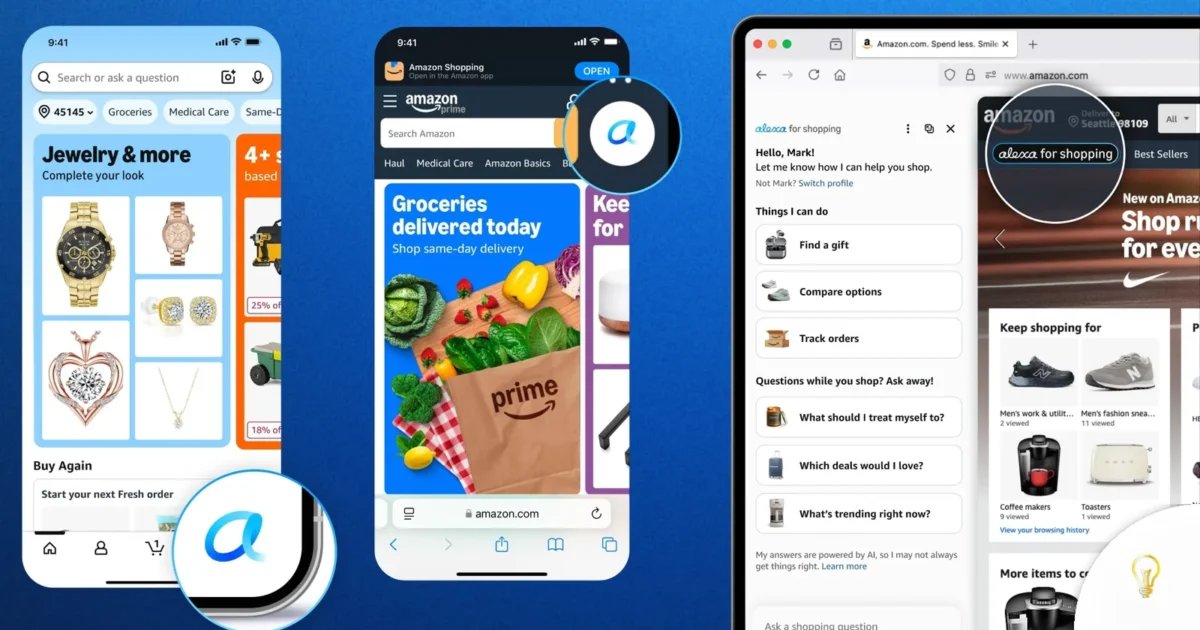
Amazon’s Alexa for Shopping now works over text messages, so you can describe what you want and let it search, compare and buy. The difference is where you do it: in the message thread you already use all day, without opening the Amazon app or site.
In Short
- You can type or photograph what you need and Alexa for Shopping searches Amazon listings, texts back recommendations and orders the item on your behalf.
- The same thread handles lists, price alerts, product comparisons, price history and package status, all in natural language.
- It reached a small group of Amazon customers in the US by invitation, then millions more customers in the coming weeks, according to Amazon.
What Alexa Changes for You
Amazon added a texting channel to Alexa for Shopping, its AI shopping assistant. Select US customers received a text asking them to enable the feature, and the contact then shows up in their phone as Amazon Alexa. According to The Verge, the launch builds on the Alexa for Shopping experience that arrived in May, letting you place orders when texting is easier than reaching for the app. Rajiv Mehta, vice president of Conversational Shopping at Amazon, said the agent is “just a text away” and goes to work “searching, comparing, and buying.”
The texting feature is rolling out to a small group of US customers first, starting from November 6, 2026, with millions more to follow in the coming weeks, according to Amazon. Amazon has not announced a price for using Alexa for Shopping over text, so treat any cost as unknown until the company says more.
Hint 1: Send a Photo Instead of Typing a Description
You can share a picture of an item, or of someone wearing an outfit, and Alexa for Shopping searches for similar listings on Amazon from it. The photo becomes the search, so you can start from what you are looking at instead of from a product name you would have to look up. It also lets you find options when you like the look of something but do not know what it is called.
Say you see a friend’s winter coat and want the same silhouette in another color. You snap a photo, text it to Amazon Alexa and ask for similar options, then pick from the listings it sends back.
- Look for a text from Amazon inviting you to enable the shopping feature, then open it and turn the feature on.
- Start a message to the contact saved as Amazon Alexa and attach the photo you took.
- Shoot in daylight against a plain background, and add one line about the detail you care about, such as size or material, so the recommendations stay close to what you want.
Hint 2: Reorder the Boring Regulars in One Message
Text “reorder the (product name)” and Alexa for Shopping finds the item and purchases it after you approve. That turns repeat buying into a two-line exchange you can fire off whenever the thought crosses your mind. The same channel covers resupplying pet food: tell it you have run out and it handles the rest.
For example, you notice the dog food bag is nearly empty while the kettle boils. One text saying “reorder the (product name)” starts the purchase, and you approve the order without leaving the kitchen.
- Text a reorder request using the product name you would use in conversation, not a model number.
- Read the item it finds before you give approval, since a name that is close but not exact can pull up the wrong size or pack.
- Keep the names of your regular items handy, such as the pet food you resupply, so each reorder stays a single message.
Hint 3: Get a Text When the Price Actually Drops
Alexa for Shopping can watch an item and text you when the price falls or a major deal appears. You set it with a line like “let me know when (product name) goes on sale”, which means you stop refreshing product pages yourself. On top of that, you can ask “what’s the price history on this (product name)?” to see whether the current price is actually a good deal.
If you are waiting on a pair of headphones to come down before a birthday, text the alert request once and let the price history question settle whether the current number is worth taking.
- Text “let me know when (product name) goes on sale” for each item you are watching.
- Before you buy, send “what’s the price history on this (product name)?” and read the pattern it sends back.
- Ask for the price history at the moment a deal text arrives, not weeks later, so the comparison is against the real current listing.
Teach It How You Shop
Tell Alexa for Shopping your shopping rules in plain words, such as only showing organic options, giving nutritional data every time you ask about food, or adding items to your cart automatically when you mention them. Those preferences carry into later requests, so one setup message saves repeating yourself on every order.
Hint 4: Settle a Gift List Without Opening an App
The agent manages lists from a text message, so you can say “add (product name) to my grocery list” or “create a new Christmas gift list” and it takes the note. You can also ask it to look up a birthday gift you need by a certain day and ask for suggestions in the same thread. For anyone who keeps reminder lists in messages anyway, this keeps the plan and the purchase in one place.
Picture a group chat where people keep naming ideas for a relative’s birthday. You add each one to a gift list as it appears, then ask for recommendations for anything still missing.
- Create one list per occasion with a clear name, such as a Christmas gift list, so requests never land on the wrong one.
- Add items as you think of them, since the whole point is that the message thread is with you when the idea arrives.
- Name the deadline when you ask for gift ideas (“a gift you need by a certain day”) so the picks it returns can actually arrive in time.
Hint 5: Compare Products and Check Your Package by Text
Text “compare the top-rated (type of product)” and Alexa for Shopping sends back the key details, customer reviews and pricing for the options it finds. You can also ask “where’s my package?” to get delivery status without digging through order pages. Both requests are things you would otherwise open the app for, done in the thread you are already in.
Say you are choosing between air fryers before a holiday dinner and want the short version of reviews. One comparison text gives you the pricing and the review picture together, and a package question later keeps you from wondering about the delivery.
- Text a comparison request with a specific product type, such as the top-rated robot vacuums, rather than a single brand.
- Save the comparison it sends and read the pricing cells closely, because price is the part that shifts fastest.
- Ask “where’s my package?” only for orders you actually placed, and use the product name from the order so the answer is not about an older delivery.
Hint 6: Find Items From Stores Across the Web
When you research an item in the text thread, Alexa for Shopping can surface options from Amazon’s Shop Direct experience, which helps customers discover and buy products from stores across the web. You can buy directly through the merchant store with Shop Direct, or use Buy for Me on some products to have Amazon make the purchase for you. In a single conversation you can move from what you described to an option outside Amazon’s own listings.
If a specific running shoe keeps selling out where you usually shop, the Shop Direct options in your thread can point you to another store that carries it, with Buy for Me available for some products.
- Describe the product family in your text rather than one exact model, then ask for other options.
- When an outside store appears, check whether the listing lets you buy there directly or offers Buy for Me.
- Confirm the seller and the return terms before you approve a purchase from a store you have not used before.
Quick Reference: What You Can Do Now
Here is what you can do in the Alexa for Shopping text thread, and what each request needs from you.
| Task | How to do it now | What you need |
|---|---|---|
| Order an item you already know you want | Describe it in a text and approve the purchase, or share a photo and pick from the similar listings | An invitation to enable the feature and the contact saved as Amazon Alexa |
| Watch a price until a deal appears | Text “let me know when (product name) goes on sale” and wait for the alert | The item name you would use in conversation |
| Resupply pet food without shopping around | Tell the agent you have run out and let it handle the order | An approved purchase in the thread |
| Bring in options from other stores | Ask for more options during the conversation and look for Amazon’s Shop Direct results | Not stated |
What to Watch Out For
The texting feature reached only a small group of US customers, and Amazon has said millions more will follow in the coming weeks, so many readers will not have the invitation yet. Amazon has not announced a price for this, and it has not said which phones or carriers the texting contact works with. Purchases still move through Amazon, and anything you buy with Buy for Me goes through Amazon on your behalf, so the usual account and payment details apply.
Wait for the Invitation Text
Check that the message really comes from the contact your phone saves as Amazon Alexa before you enable anything, and ignore texts from unknown numbers promising a shopping agent.
Your Next Steps
- Open your messages and search for a text from Amazon asking you to enable the shopping feature, since that invitation is how access starts.
- Write down the two or three things you reorder most, so your first text can be a useful one rather than a test.
- Set a price alert on one item you have been putting off buying, so you can judge the feature on a real decision.
- Watch for Amazon’s next update as the feature reaches more US customers in the coming weeks, and for word on what it costs.
Related on Gets Hint: our Free AI Directory, our GPT-6 Astra guide.
FAQ: Alexa Text Shopping
Frequently Asked Questions
Wait for a text from Amazon inviting you to enable the shopping feature, then use the contact that appears in your phone as Amazon Alexa. From there you can text natural language requests, from searching for an item and adding it to your cart to making the purchase.
Amazon has not announced a price for the texting feature yet. The normal cost of whatever you buy still applies, since the agent purchases through Amazon on your behalf.
A small group of Amazon customers in the US got access through invitations. According to Amazon, the feature will then roll out to millions more customers in the coming weeks.
Yes. You can send a picture of an item, or of someone wearing an outfit, and the agent searches for similar listings on Amazon. It texts back recommendations and can order an item on your behalf once you approve.
It can order weekly groceries, build and edit lists, suggest gifts, compare top-rated products, check price history, alert you when something goes on sale and tell you where a package is. You can also ask about your Amazon subscriptions, billing and delivery instructions in the same conversation.