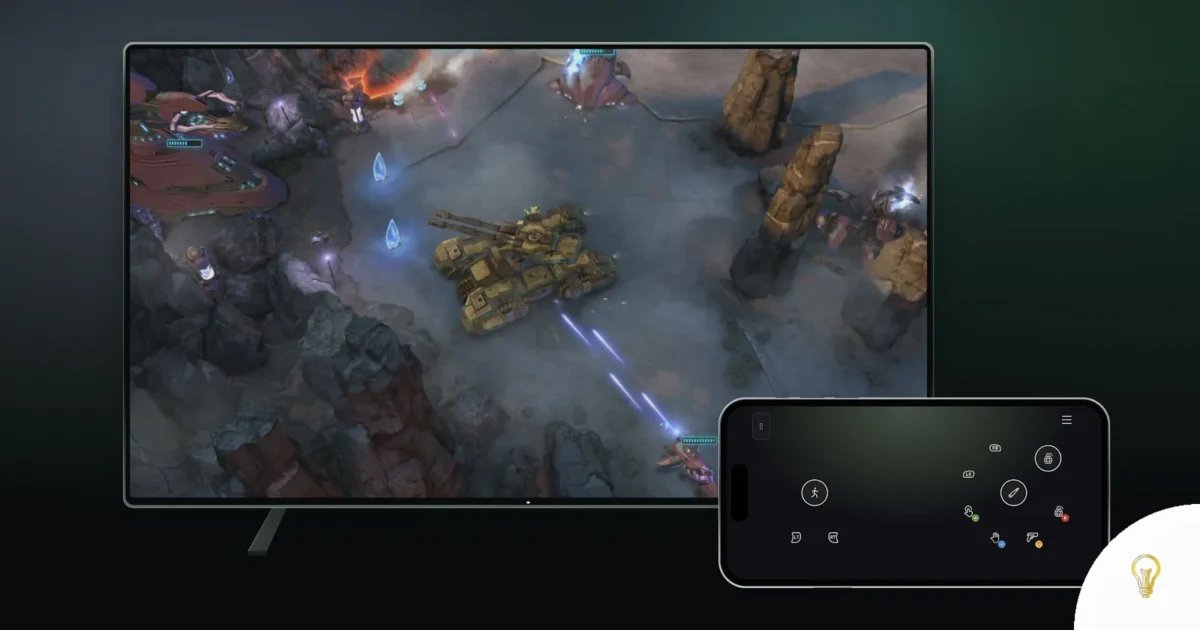
Smart TVs now let you turn an Android or iOS phone into the controller for Xbox Cloud Gaming. Microsoft opened the preview on November 4, 2026, so a missing or flat controller no longer ends the session. You can start a cloud game with the phone already in your pocket.
In Short
- No controller, no problem. On supported Smart TVs, a supported Android or iOS phone controls the game through its own browser, so there is nothing to install.
- In the US, the Xbox Nano Controller can use Cloud Connect over Wi-Fi straight to the cloud server running your game, which can help reduce input latency.
- The phone controller preview is live in countries where Xbox Cloud Gaming is supported, and Cloud Connect is limited to players in the US. Microsoft has not announced a price for either preview.
What Smart TVs Changes for You
Microsoft started rolling out two previews for Xbox Cloud Gaming on November 4, 2026, according to Xbox Wire. The first lets you use a supported Android or iOS phone as the controller on a supported Smart TV, with the controls opening in your phone’s browser. The second is Cloud Connect for the Xbox Nano Controller, which uses your Wi-Fi to reach the cloud server running your game instead of a Bluetooth link to the TV. Xbox says that can help reduce input latency, so gameplay may feel more responsive.
The phone controller preview is live on supported Smart TVs in countries where Xbox Cloud Gaming is available, and it is still being tested. Cloud Connect is a preview for players in the US, limited to supported Smart TVs and the web. Microsoft has not announced what either preview will cost once testing ends.
Hint 1: Start a Game With the Phone Already in Your Hand
The headline change is simple: when you launch a cloud game without a physical controller connected, your TV offers an option to use your phone for that session. The controls open in your phone’s browser, so you do not download a separate app or plug in extra hardware. A game sitting on your TV no longer has to wait for a physical controller to turn up. The permission is per session, so you are only linking the phone when you actually need it.
Say you sit down after dinner, open a cloud game on the living room TV and realise the controller is still in a bag from the weekend. Instead of hunting for a cable, you pick up the phone and keep the evening going.
- Open the latest supported Smart TV experience and go to Settings, then Account, and turn on Preview Features.
- Launch a cloud game with no controller connected and choose the option to use your phone when the prompt appears.
- Keep the phone on the same reliable Wi-Fi as the TV and close heavy background apps before you play, so the browser controls stay responsive.
Hint 2: Skip the Companion App and Just Scan
The virtual controller lives in your phone’s browser, and you link it by scanning the QR code shown on your TV. Xbox says you do not need a separate controller, and no companion app is part of the setup. That matters when you are handing a game to a guest or a family member who does not own any gaming gear. A connected phone is all that one session needs.
Picture a friend visiting for the evening who has never touched a console controller. You scan the QR code on your TV with their phone and hand them the browser controls, with no downloads and no extra hardware in the room.
- Start the cloud game on your TV with Preview Features on and no physical controller connected.
- Point the phone camera at the QR code on the screen and accept the link when the browser opens.
- Have the guest hold the phone in landscape and set the screen to stay awake, since a screen that dims mid-session is the usual first problem.
Hint 3: Play Games Built Around Touch Controls
Xbox says some games will have controls tailored to how they play, rather than one identical on-screen pad for everything. That means a game can show the buttons, sticks or swipes that actually suit its own style. A touch layout designed for the game is much more comfortable than a cramped imitation of a physical controller. It also makes short sessions on the sofa far less fiddly.
If you want a quick run in a lightweight title before bed, a tailored touch layout lets you play without balancing a controller or propping a second screen on your knees.
- Try a small, simple game first, so you can judge the tailored layout without a long tutorial or a heavy menu system.
- Give each game a few minutes with the touch controls before you decide, and notice whether the layout puts the important buttons where your thumbs naturally rest.
- Keep a physical controller nearby for games that expect precise aiming, since not every cloud title is built for a touch layout.
Turn It On Before Anyone Arrives
Enable Preview Features and test the phone link on a quiet evening while you can read the prompts properly. Doing it once in advance means guests, children or a rushed ten minute break later all start without a setup detour.
Hint 4: Cut the Lag With a Wi-Fi Controller
Cloud Connect changes how the Xbox Nano Controller talks to the game: it uses Wi-Fi to reach the cloud server directly instead of a Bluetooth link to your TV. Xbox says that can help reduce input latency, so gameplay may feel more responsive. For anyone who notices a slight delay between pressing a button and seeing the result, that is the difference worth testing. The feature is in preview for players in the US, on supported Smart TVs and the web.
Say you keep losing close races in a driving game and cannot tell whether your timing is off or the delay is. Running the same game with Cloud Connect is a fair way to find out.
- Set up Cloud Connect on the Xbox Nano Controller using the Xbox beta app on Android, or the Xbox Accessories app on PC.
- Follow the steps in the app to connect the controller to your Wi-Fi network, and note that setup through the PC app requires Xbox Insider enrollment.
- Play the same short section of a game before and after the change, so you can judge the feel for yourself instead of relying on a description.
Hint 5: Try It on a Browser as Well as a TV
Cloud Connect is not tied to the television: Xbox says you can try it on supported Smart TVs and the web for now. That gives you a second place to test the controller without taking over the living room. In a US household where one screen is usually busy, a browser session on a laptop is an easy way to check whether the Wi-Fi link suits your setup. If it feels good there, you know what to expect on the TV.
For example, you could test Cloud Connect on a laptop at the kitchen table while someone else watches something on the main TV, then move to the big screen once the room is free.
- Connect the Xbox Nano Controller to your Wi-Fi network through the app before you open a game in a browser.
- Launch a supported Xbox Cloud Gaming experience in your browser and play a few minutes to check the response.
- Sit closer to your router or use the less crowded Wi-Fi band while you test, since the point is to judge the controller link and not your home network.
Hint 6: Get Your Issue Fixed in the Next Update
Both features are tests, and Xbox says it will use what players report to help shape future updates. Feedback goes straight from the preview, so you do not have to hunt for a support form. For the phone controller, you can send it from your phone or through a supported Smart TV app. For Cloud Connect, the route is the Xbox Accessories app on PC or the Xbox mobile app. Reporting a broken game or an awkward button now is the most direct way to get it changed.
If a game’s touch layout puts the jump button under your palm, a short note with the game’s name tells the team exactly what to fix. The same goes for a title that refuses to connect over Wi-Fi with Cloud Connect.
- On your phone, tap the Xbox icon in the top left corner after scanning the QR code on the TV and pick Give Feedback.
- For Cloud Connect, open the Xbox Accessories app on PC or the Xbox mobile app and select the Feedback icon.
- Name the game, the TV and the phone in your message, because a report that says which device failed is far easier to act on.
Quick Reference: What You Can Do Now
Here is what each part of the preview asks of you before you can play.
| Task | How to do it now | What you need |
|---|---|---|
| Use your phone as a controller | Turn on Preview Features under Settings then Account and choose the phone option when a game launches | A supported Smart TV and a supported Android or iOS phone |
| Link a guest’s phone for one session | Scan the QR code shown on the TV and play in the phone’s browser | A phone with a browser, no app needed |
| Set up Cloud Connect | Use the Xbox beta app on Android or the Xbox Accessories app on PC, then follow the Wi-Fi steps | The Xbox Nano Controller and, for PC setup, Xbox Insider enrollment |
| Try Cloud Connect somewhere other than the TV | Play a supported Xbox Cloud Gaming experience on the web | Support on the web, with the controller on your Wi-Fi |
What to Watch Out For
Both experiences are still being tested, and Xbox warns that availability and supported games or devices may be limited while it learns from feedback. Cloud Connect is described as an early test that will not work with every cloud gaming experience yet, and for now it is limited to supported Smart TVs and the web in the US. The phone controller preview is rolling out in countries where Xbox Cloud Gaming is supported, but not every Smart TV is supported. Setup through the PC app also requires Xbox Insider enrollment.
Check Your TV Is Supported First
Look for Preview Features under Settings then Account in the latest supported Smart TV experience before you plan an evening around it. If the toggle is not there, your TV is not part of the preview and your phone will not be offered as a controller.
Your Next Steps
- Open Settings, then Account on your Smart TV and switch on Preview Features so the option is ready the next time you play.
- Launch one cloud game without a controller connected and link your phone to see how the browser controls feel.
- If you are in the US and own the Xbox Nano Controller, set up Cloud Connect in the app and follow the official setup guide on Xbox Support.
- Watch for wider support, since Microsoft says it will use feedback from these previews to help shape future updates.
Related on Gets Hint: our latest gaming coverage, everything we know about GTA 6.
FAQ: Xbox Cloud Gaming Controllers
Frequently Asked Questions
Turn on Preview Features under Settings then Account in the latest supported Smart TV experience, then launch a cloud game with no physical controller connected. Your TV offers an option to link your phone for that session, and the controls open in your phone’s browser once you scan the QR code.
Not if you are in the phone controller preview. On supported Smart TVs, a supported Android or iOS phone stands in for a controller and needs no separate app. Some games also get controls tailored to how they play, according to Xbox.
Cloud Connect lets the Xbox Nano Controller reach the cloud server running your game over Wi-Fi instead of a Bluetooth link to your TV. Xbox says that can help reduce input latency. It is an early test, so it will not work with every cloud gaming experience yet, and for now it is limited to supported Smart TVs and the web in the US.
Microsoft has not announced a price for either preview. Both are testing programmes that Xbox is running to collect player feedback. What they cost once testing ends, and what happens to them, has not been confirmed.
The preview works with a supported Android or iOS phone, and the controls run in the phone’s browser. Xbox has not listed every compatible handset, and supported devices may be limited while the test runs. Check the official Xbox support page for the current list before you rely on a particular phone.